
Buying a USB-C charger: watts, ports, and the cable you actually need
Choose a USB-C charger and cable around your devices, simultaneous charging needs, and data or display connections—not the largest number on the box.
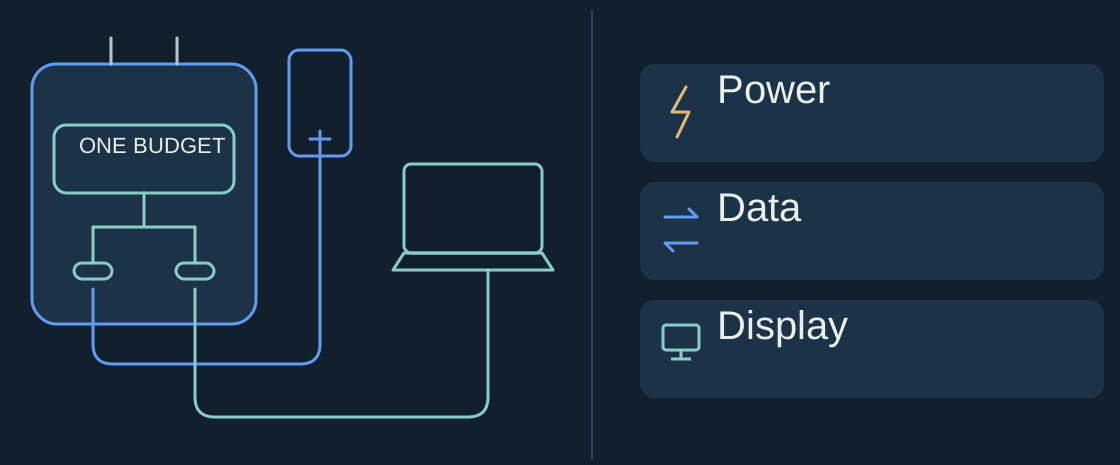
A charger can work perfectly with your laptop on its own, then become the wrong charger when you plug in your phone. A cable can charge both devices and still be unsuitable for a monitor. Those are separate buying decisions, even though everything has the same connector.
This is a research-based guide, not a charger test. The named products below illustrate documented specifications; they are not ranked recommendations. Our advice is editorial reasoning drawn from those specifications.
The short version
- One laptop: start with its manufacturer’s recommended charging setup, not the largest wattage on the shelf.
- Several devices at once: check the laptop’s allocation with the other ports occupied. The headline rating is not the whole power budget.
- A cable for charging: verify its stated charging capability. For storage or a monitor, separately check data and display support across the complete connection.
- An unreliable setup: diagnose the cable and adapter separately before replacing both. Keep working equipment when it already meets your needs.
The sections below explain those checks and the model-specific examples behind them.
Start with the device, not the charger
Write down the exact laptop or phone model and check its manufacturer’s charging guidance. Record the recommended adapter wattage, supported charging standard, and any special requirements for fast charging. Do not assume every laptop with a USB-C socket accepts power through it.
For a concrete example, Apple’s Mac charging guidance says USB-C charging Macs can use adapters or displays supporting USB Power Delivery, or USB PD. Apple recommends at least the wattage of the adapter specified for the Mac for the best charging experience, while also allowing higher- or lower-wattage adapters.
The buying implication is narrower than “any charger will do.” An adapter that can charge a computer is not necessarily the right choice for using it all afternoon. If your priority is dependable desk charging, meet the manufacturer’s recommended wattage before paying for extra ports or a smaller enclosure. If your existing adapter already does that, keep it.
For a phone-only bag, laptop-level output may be unnecessary. Apple permits a higher-wattage USB-C adapter, including a Mac adapter, with USB-C iPhones. That is compatibility guidance, not evidence that the phone uses the charger’s entire rated output. Buy for the phone’s documented needs rather than assuming a larger wattage means a proportionately shorter charge.
Read the port-sharing table
A multiport charger’s headline wattage does not tell you what the laptop gets when every socket is occupied. Look for the manufacturer’s table showing one-port, two-port, and three-port operation. If it is missing, you are missing information needed to choose confidently.
The Anker 735 Charger, model A2667, makes the distinction explicit:
- Either USB-C port alone is listed at up to 65W.
- With both USB-C ports in use, the listed split is up to 45W on USB-C1 and 20W on USB-C2.
- With all three ports in use, the listed outputs are 40W, 12W, and 12W respectively.
These are Anker’s published limits, not measurements by TangibleTek. They show why a “65W charger” is not automatically a 65W laptop charger while also charging accessories.
Decision rule: check the laptop’s allocation in the exact port combination you expect to use. If that allocation falls below your target, choose a different documented distribution or carry a separate phone charger. Port count is useful only after the power budget works.
One multiport adapter reduces the number of plugs to pack. Separate adapters let you leave the laptop’s power allocation untouched and give you a spare if one adapter fails. Neither arrangement wins universally; the better choice depends on whether you charge devices together or sequentially.
Treat charging, data, and video as separate requirements
For a charge-only cable, look for an explicit supported wattage that meets your intended charging setup. Do not infer it from “USB-C,” a braided jacket, or the size of the plug.
For file transfers, also check the advertised data rate and the capabilities of both devices. Apple’s iPhone connection documentation provides a useful counterexample: the included USB-C cable supports charging and USB 2 speeds; supported Pro models need a suitable USB 3 cable to use their faster data connection.
Our advice: a charge-focused cable is a reasonable choice for the bedside. A separate, clearly specified data cable makes more sense for regular external-storage work. Buying a fast cable cannot add a faster interface to a device that lacks one.
A monitor introduces another question: does the computer support the required video output, and does the cable support that connection? Apple’s documentation describes DisplayPort output for supported USB-C iPhones and specifies suitable cables. That does not establish video support for every USB-C device or cable.
For a desk with a monitor or dock, check the complete chain: computer port, cable, dock or display, and power delivered back to the computer. “It charges” is not a successful display-compatibility check.
Make replacement a diagnosis, not a guess
Before buying more equipment, try a known-good compatible cable and adapter separately. Apple’s charging troubleshooting page recommends cable substitution and says to stop using a cable that works only when moved or wiggled. It also calls for ventilation around the adapter.
Choose cable length around where the outlet actually sits. Leave enough slack that a chair or bag will not pull on the connector. Keep an existing working charger as a spare rather than replacing everything because one cable failed.
Building the rest of your travel kit?
Charging is only one part of the bag. Our headphones guide separates listening, calls, and backup connections so you can choose around the job—not just the feature list.
Sources and research limits
Sources checked October 4, 2026: Apple’s Mac adapter guidance, iPhone USB-C guidance, charging troubleshooting, and Anker’s A2667 specifications.
We verified published compatibility guidance and output tables, not electrical safety, sustained output, heat, cable durability, or charging times. Examples do not establish compatibility with an unlisted device. Confirm the exact model and port combination before ordering. No hands-on results, prices, review scores, or affiliate links are used here.